Otonota for iPad
The whole meeting, on one screen. Nothing leaves the iPad.
Turn the iPad sideways and your sessions, the transcript, and the summary sit side by side. Stand it on the meeting-room table and press record: what's said becomes text, and the text becomes a summary. It all happens on the iPad, and neither audio nor text leaves it.

The iPhone and iPad version installs on an iPhone or iPad that supports Apple Intelligence. Open this page on that device.Copied
Chapter ISideways, next to your sessions.
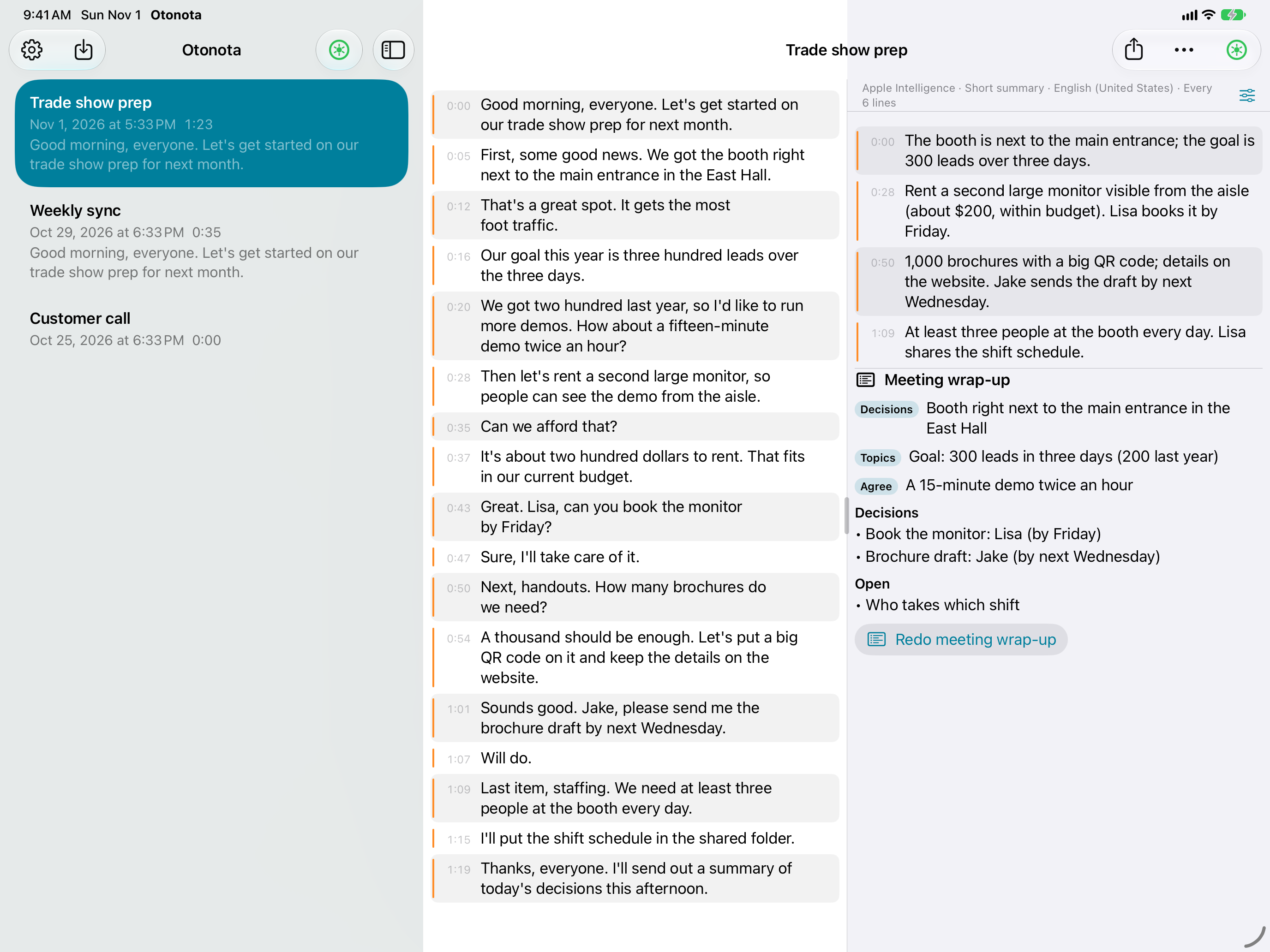
In landscape, your sessions are on the left and the transcript and summary on the right. Stand it upright and the transcript sits above the summary.
Pick a meeting from the list and its transcript and summary open beside it, with the wrap-up you made after recording at the end of the summary Pro. Start recording and the new session goes to the top of the list, the microphone's lines pile up with timestamps, and the summary next to them grows every few lines. Drag the divider between transcript and summary to give either more room.
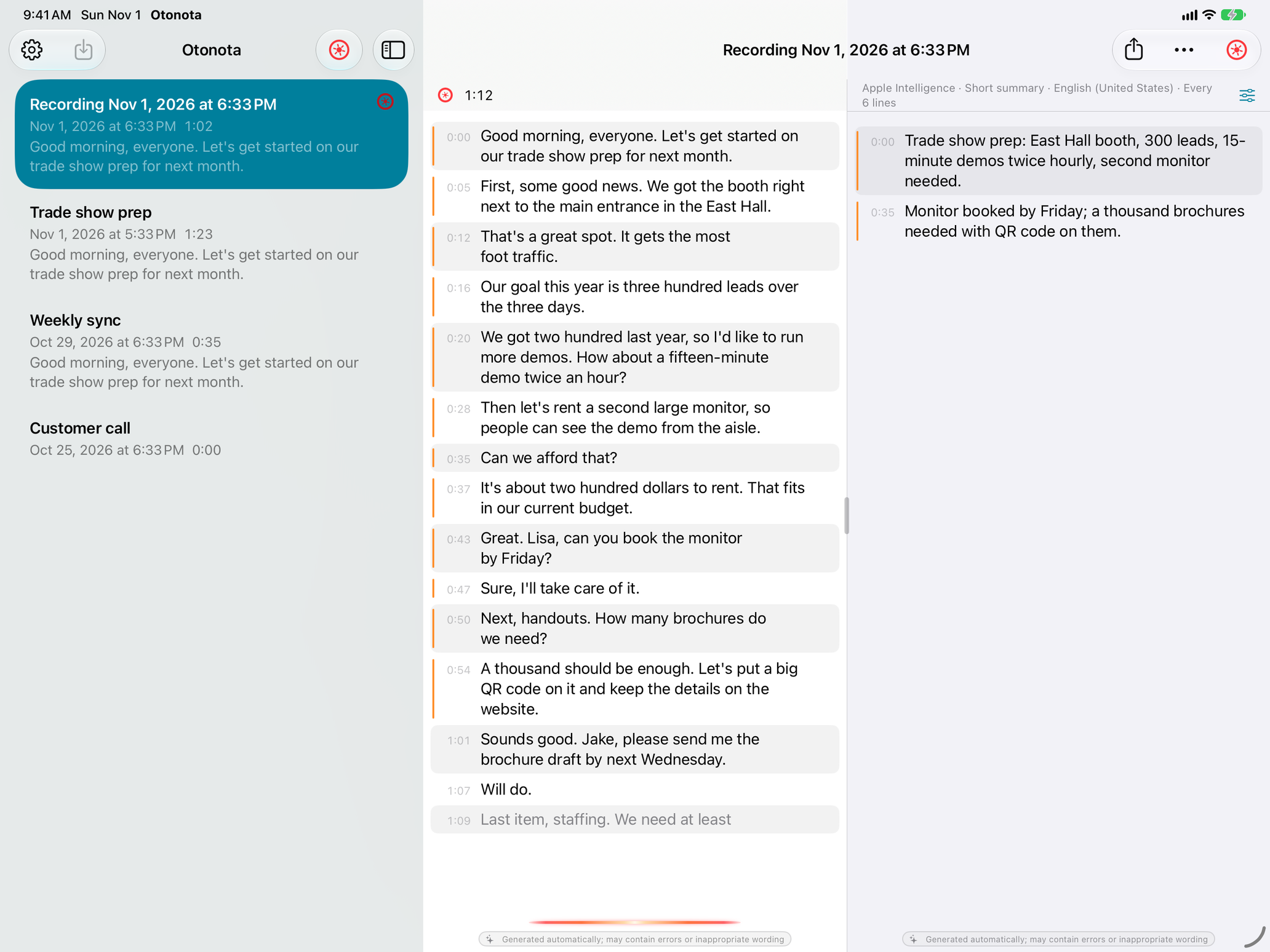
The summary updates every few lines in one of four modes — a short summary, a conversational summary, keywords, or a translation — in the output language you choose, and you can change both mid-recording. Follow a meeting held in Japanese through an English summary, for example. Add product names and people's names to the glossary in Settings and they improve both the transcript and the summary.
The screen stays awake while you record. Lock it or switch to another app and recording and transcription carry on; the summary catches up when you come back to Otonota. Sessions stay on your iPad, and you can share or export the transcript and summary text as Markdown.
Chapter IIStand it on the meeting-room table.
The screen is big enough for the people across the table to read.
Weekly meetings, training sessions and lectures, interviews. Stand the iPad up, press record, and everyone can follow the transcript and summary together. Missed what someone said? Scroll back through the transcript. At the end, go over the summary and confirm what was decided while everyone is still in the room.
Afterwards, open earlier meetings from the list — check what last week's meeting decided before this week's begins. Share the transcript and summary text as Markdown, and you have the first draft of the minutes.
Chapter IIIThe audio never leaves the device.
Apple's speech recognition writes the transcript; Apple Intelligence writes the summary. Both run on your iPad.
Otonota for iPhone and iPad has no cloud speech recognition or cloud language models at all — not even as an option. Transcription runs on Apple Intelligence speech recognition, or on standard speech recognition limited to the languages the device can recognize on its own. The WhisperKit and MLX models you can add with Pro run on the device too. That makes it usable for confidential negotiations, interviews, clinical or legal consultations, and on a plane.
Chapter IVWith Pro, past the end of the meeting.
A wrap-up of the whole meeting, importing recordings, and larger on-device models. Pro
The wrap-up sorts a finished meeting into topics, decisions, and open items. Long meetings are wrapped up in sections first, then combined.
Import runs voice memos, videos, and other files through the same transcription and summaries as a live recording. Imports and re-transcriptions can also separate speakers, labeling each line "Speaker 1", "Speaker 2", and so on — processed on the device.
External on-device models: download WhisperKit for transcription and MLX models for summaries. They run on the device too.
In the US, Pro for iPhone and iPad only is US$14.99, and Pro for Mac, iPhone and iPad is US$49.99. Both are one-time purchases, not subscriptions. If you later want Pro on your Mac too, you can upgrade for the difference.
Prices on this page are for reference. App Store prices can change before this page is updated; the price shown in the app and on the App Store when you buy is the one that applies.
Chapter VWhich devices, and what it records.
iOS 27 / iPadOS 27 or later, on an iPhone or iPad that supports Apple Intelligence — the foldable iPhone Duo included. Apple Intelligence writes the summaries, so Otonota isn't available on models without it.
iPhone, iPad and iPhone Duo run the same app; the layout follows the size and orientation of the screen.
It records the microphone only: iPhone and iPad don't let one app record another app's audio, such as a video call. If you want the other side of an online meeting in the transcript too, the Mac version, which can record system audio, is the better fit.
Get itFree, on the App Store.
Otonota is free on the App Store, with no account to create. Pro is available from the Pro section in the app's settings. If you've already bought Pro on your Mac, your iPhone and iPad signed in with the same Apple Account have Pro too.
The iPhone and iPad version installs on an iPhone or iPad that supports Apple Intelligence. Open this page on that device.Copied
iOS 27 / iPadOS 27 or later · iPhone and iPad with Apple Intelligence (iPhone Duo included)
Otonota for MacOtonota for iPhoneOtonota for iPhone DuoQuestions and answers