Otonota for Mac
Every word of the meeting, written down as it's said. Nothing leaves your Mac.
Otonota transcribes and summarizes while you're still talking. By default, audio and text stay on the machine — no cloud, no account, no upload. It's a tool for people who would rather listen than take notes.

The Mac version can't be installed on this device. Open this page on your Mac.Copied
Chapter IPress record. That's the whole workflow.
What's said becomes text, and the text becomes a summary — or two with Pro, each in its own mode and language.
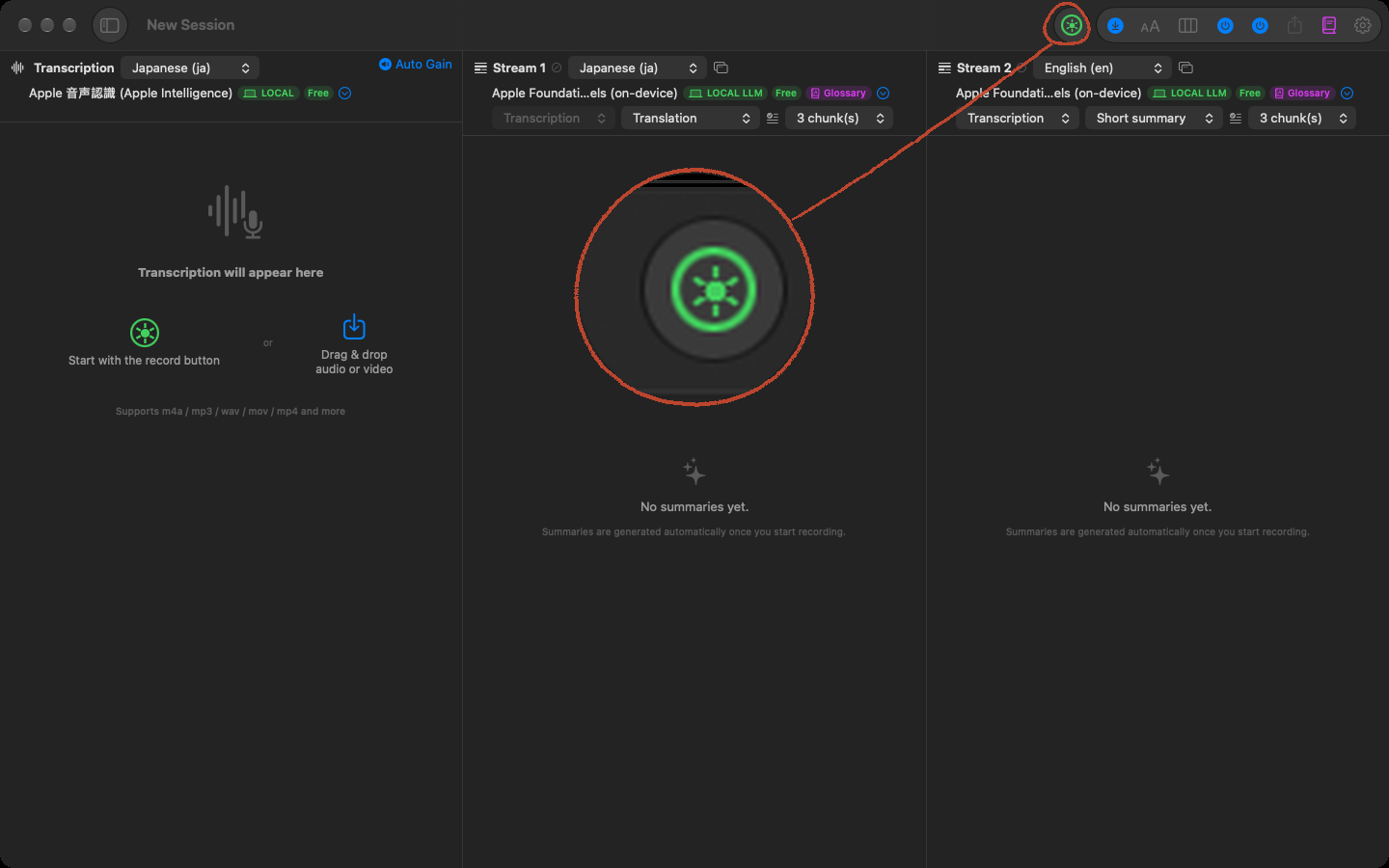
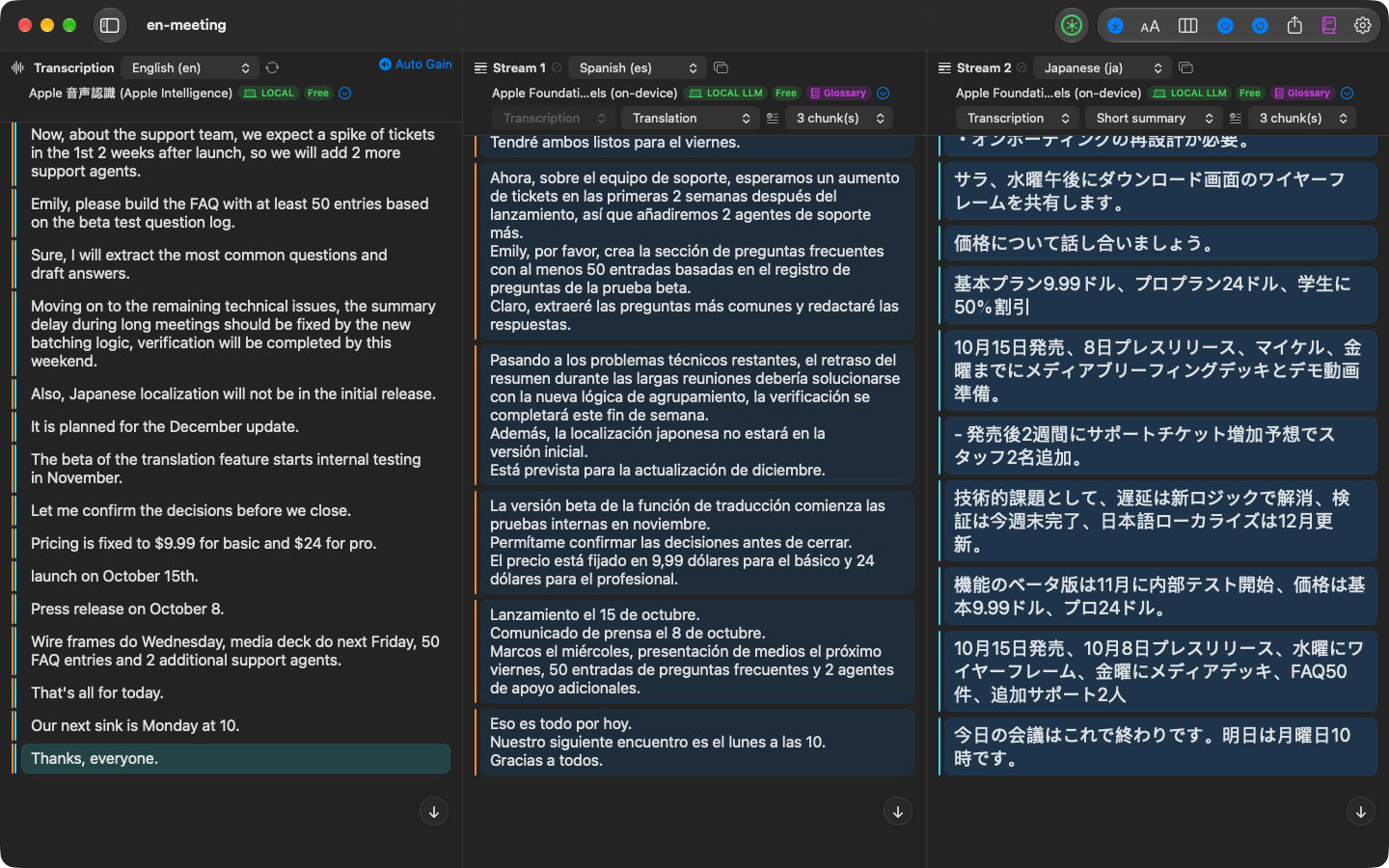
The window has up to three columns. On the left, completed transcript entries appear with timestamps. Text still being transcribed appears in a lighter bubble. The middle and right columns show two summary streams that update every few lines, each in your chosen mode: a short summary, a conversational summary, keywords, or a translation — and each in its own output language. Follow a short English summary in one while a Japanese translation runs in the other.
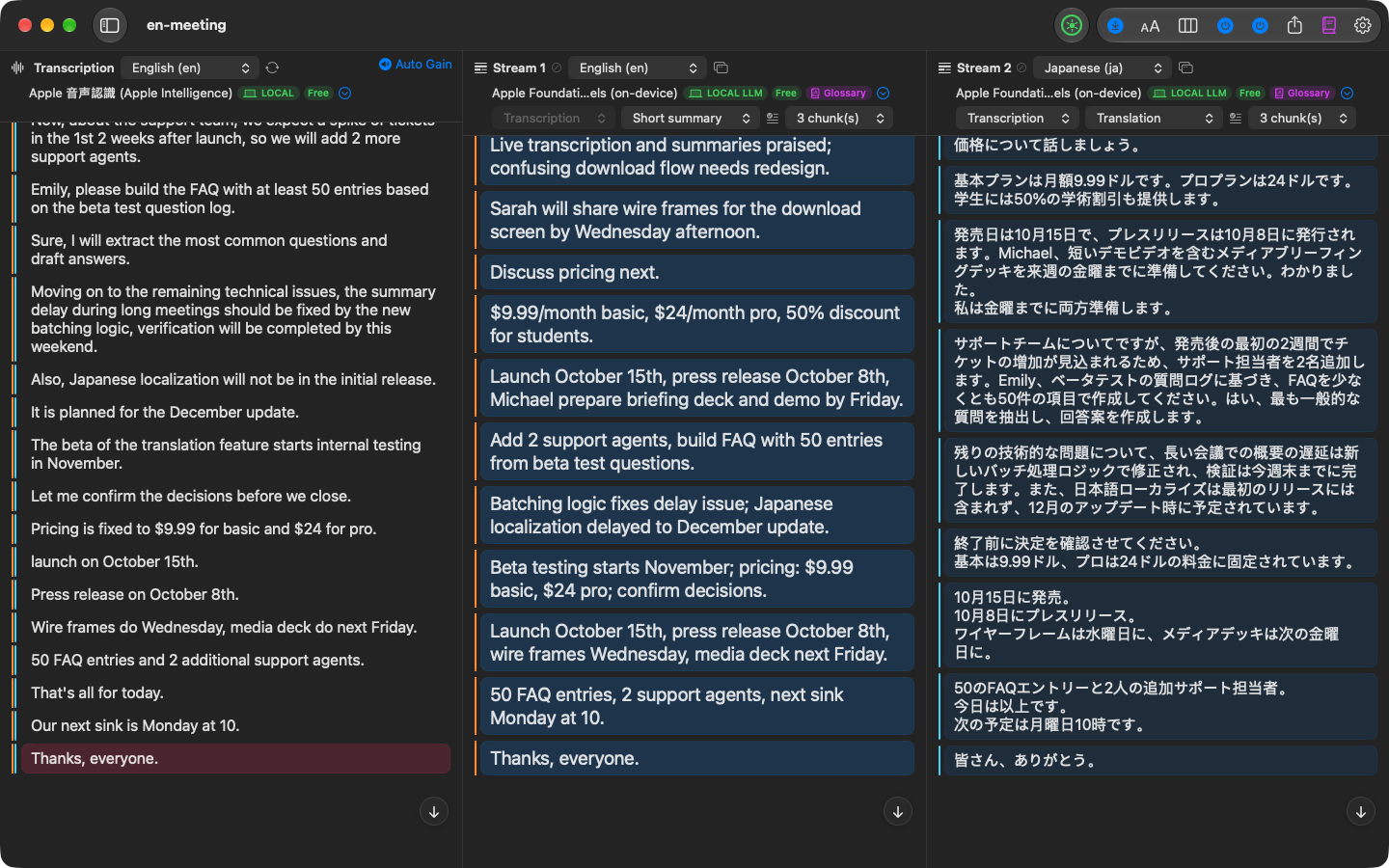
You can record from your microphone, from system audio, or from both at once, so a Zoom or Google Meet call comes through with the other participants and your own voice.
Chapter IIThe audio never leaves the room.
By default, transcription and summarization don't use the network.
Transcription and summarization run on Apple's speech recognition and Apple Intelligence, or on WhisperKit and MLX models running locally on the Mac. That makes it usable where cloud transcription isn't:confidential negotiations, interviews, clinical or legal consultations. It works on a plane. Pro adds the option of cloud language models (OpenAI, Google, Anthropic) with your own API key — used only when you explicitly switch to one, never by default.
Otonota looks at the chip and memory in your Mac and picks a sensible pair of engines to start with. An 8 GB MacBook Air runs on Apple's built-in engines; 16 GB and up unlocks larger on-device models. You can change engines at any time.
Chapter IIIAlready recorded? Drop the file.
Drag an audio or video file onto the transcript column and it goes through the same transcription and summarization as a live recording. Pro
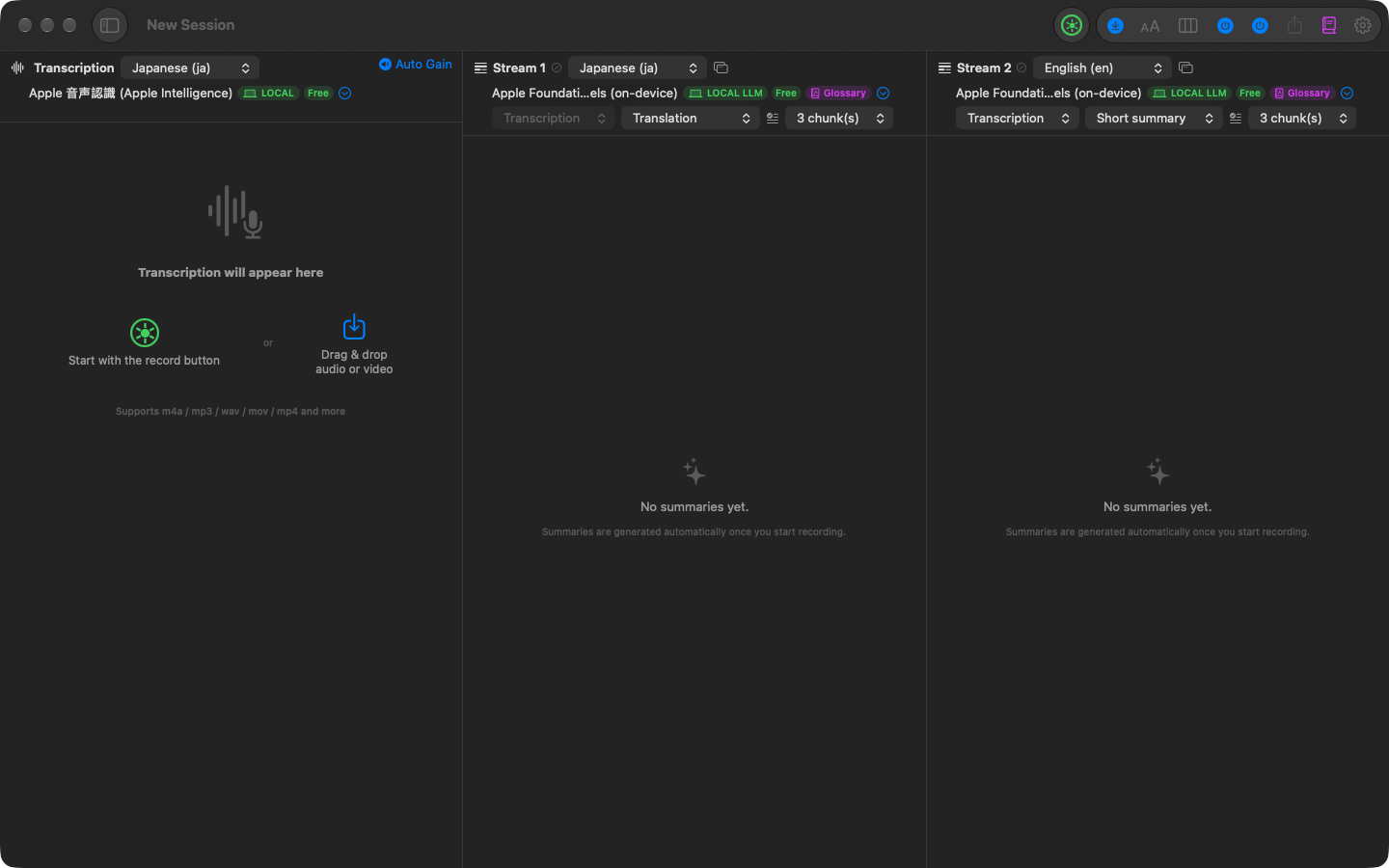
A voice memo, a Zoom cloud recording, a video of a lecture. Drop the file, or pick it with "Choose file", and m4a, mp3, wav, mov, mp4, and similar formats run through the same engines and the same two summary streams as a live recording. Long files show their progress, and you can start reading before they finish. An imported session can later be re-transcribed with a different engine, and the original is kept.
Imports and re-transcriptions can also separate speakers. Otonota listens to the whole recording on the Mac and labels each line "Speaker 1", "Speaker 2", and so on. If you know how many people were talking, tell it, and the split gets more accurate.
Chapter IVPut the summary on the big screen.
Stream 1 and Stream 2 can each be popped out into their own window, or shown side by side in one. Pro
Send a running summary of what's being said, and a translation into another language, to the meeting-room display or the lecture-hall projector. Participants can follow along without looking up from their own notes, and colleagues who don't speak the language can read the translated side. The transcript itself stays off the screen — only the summary and translation go up — so a slip of the tongue or a misheard word is never blown up in front of the room.
Each window has its own font, text size, and target display, and full screen hides every button and menu. The settings are saved per window, so the next meeting opens the same way. The auto-generation notice stays up for the first three minutes and then reappears briefly at the interval you choose — a way to tell the audience "this is generated automatically" without being a nuisance.
Chapter VListen in one language, read in another.
Follow a meeting held in Japanese through an English summary, or keep English notes from a lecture given in German. The interface, summaries, and translations come in these 22 languages. You can add product names, people's names, and internal jargon to a glossary to improve both the transcript and the summary.
- Japanese
- English
- Chinese (Simplified)
- Korean
- Spanish
- French
- German
- Italian
- Portuguese
- Russian
- Arabic
- Hindi
- Vietnamese
- Thai
- Dutch
- Swedish
- Norwegian
- Danish
- Finnish
- Polish
- Turkish
- Indonesian
A red dot marks the 10 languages the Mac's built-in engines can also transcribe. The other languages are transcribed by WhisperKit, which is included in the free version. The interface, summaries, and translations cover all 22.
When a recording or import is done, export the audio and the transcript and summary text, and, with Pro, JSON, CSV, and SRT with elapsed times from the start of the recording — plain files you can keep, not a format you're locked into. And if the app crashes mid-meeting, the recording and transcript survive: they're saved to disk every few seconds, and Otonota offers to pick up where it left off.
Chapter VIWhen the meeting ends, the wrap-up.
Once a recording or import is done, Otonota can sort the whole meeting into topics, decisions, and open items. Pro
Press the wrap-up button at the bottom of Stream 1 and Otonota writes one page that looks across the entire meeting, using Stream 1's engine and output language. Long meetings are wrapped up in sections first, then combined. What was discussed, what was decided, and what's still open — copy it or export it as the first draft of your minutes.
EnginesEngines and languages on the Mac.
The Mac's built-in engines, plus one WhisperKit model and one MLX model, are free. The other engines require Pro. For prices and everything else that separates the free version from Pro, see Pricing.
| Engine | Languages | Free | Pro |
|---|---|---|---|
| Transcription | |||
| The Mac's built-in engines (Apple Speech / Apple Intelligence) | 10 | ○ | ○ |
| WhisperKit large-v3 | 22 | ○ | ○ |
| Larger WhisperKit models (large-v3-turbo and others) | 22 | — | ○ |
| OpenAI speech recognition (gpt-4o-transcribe / gpt-4o-mini-transcribe, your own API key) | 22 | — | ○ |
| Summaries and translation (output languages) | |||
| Apple Intelligence, in four modes: short summary, conversational summary, keywords, translation | 15 | ○ | ○ |
| MLX Qwen3.5 2B | 22 | ○ | ○ |
| Larger MLX models (Qwen3.5 4B / 9B, Qwen3 14B, Qwen3.8 27B, Muse Glimmer 30B) | 22 | — | ○ |
| OpenAI ChatGPT, Google Gemini, and Anthropic Claude language models (your own API key) | 22 | — | ○ |
The 10 languages the built-in transcription covers are English, Japanese, Chinese, Korean, German, French, Spanish, Italian, Portuguese, and Russian. If Apple Intelligence is unavailable on your Mac, Otonota offers to download MLX Qwen3.5 2B and use it for summaries. The larger MLX models are listed only if they fit in your Mac's memory. Cloud speech recognition and language models use your own API key; the providers' usage fees are not included in Otonota's price and are billed directly to your own account.
Questions and answersAbout the Mac version
- Which Macs?
- Apple silicon Macs on macOS 26 or later. 8 GB of memory is enough for the built-in engines. On first launch Otonota looks at your chip and memory and picks engines and settings that won't strain the machine; you can then adjust the model and the summary window (how many segments go into one summary) at the top of each pane to match your Mac. Pro's local models only appear in the list if they fit in memory, but fitting is not the same as running smoothly: larger models take longer to summarize. Pick one that suits your Mac.
- Does any audio leave my Mac?
- Not by default. With Pro you can enable cloud speech recognition with your own API key, which sends audio to the provider. If you enable a cloud language model instead, only text is sent — never audio. There is one exception: if you choose Apple Speech for transcription and on-device recognition for that language isn't available on your Mac, macOS may recognize the audio on Apple's servers as part of the operating system. If that matters to you, choose Apple Intelligence transcription or WhisperKit.
- Which languages does the Mac version support?
- The interface, summaries, and translations come in 22 languages. Apple Intelligence writes summaries in 15 of them; the small MLX model included in the free version covers all 22. The built-in engines transcribe 10 languages (English, Japanese, Chinese, Korean, German, French, Spanish, Italian, Portuguese, Russian); WhisperKit large-v3, included in the free version, covers all 22. Pro adds the larger WhisperKit models.
- Can I get my recordings out of the free version?
- Yes. Exporting your recorded audio files and the plain text of the transcript and summaries (no timestamps) is free. Exporting JSON / CSV / SRT with elapsed times from the start of the recording requires Pro.
Get itFree, on the Mac App Store.
Otonota is free on the Mac App Store. There's no account to create — install it, press record, and you're using it. Pro is available as an in-app purchase from the app's settings, and the same purchase also unlocks Pro on your iPhone and iPad signed in with the same Apple Account (Pricing).
The Mac version can't be installed on this device. Open this page on your Mac.Copied
macOS 26 or later · Apple silicon (M1 and up)