 macOS App
Choosing engines
Free engines (the Mac's built-in ones, one WhisperKit and one MLX model), Pro engines, what fits in memory, and downloading or deleting models.
What Otonota picks for you
On launch, Otonota looks at the chip and memory and picks a pair of engines the machine can handle. With no changes, it runs like this:
| Role | Default engine | Notes |
|---|---|---|
| Transcription | Apple Speech (on-device) | No download. Recognition runs on the Mac |
| Summaries and translation | Apple Intelligence (Apple Foundation Models) | No download. Requires Apple Intelligence to be enabled |
Settings > General > Device shows the detected chip, memory, macOS version, and preset.
The Mac’s built-in engines (free)
| Engine | Role | Languages | Character |
|---|---|---|---|
| Apple Speech (on-device) | Transcription | Japanese, English, Chinese, Korean, Spanish, French, German, Italian, Portuguese, Russian | Default. Ready immediately. Commits every few seconds |
| Apple speech recognition (Apple Intelligence) | Transcription | Japanese, English, Chinese, Korean, Spanish, French, German, Italian, Portuguese | macOS 26’s newer recognizer. Fetches a language model on first use. Commits in larger chunks |
| Apple Intelligence (Apple Foundation Models) | Summaries and translation | Japanese, English, Chinese, Korean, Spanish, French, German, Italian, Portuguese, Vietnamese, Danish, Dutch, Norwegian, Swedish, Turkish | Default. Light enough for an 8 GB Mac |
The built-in engines process everything on the Mac, with one exception: if on-device recognition for the chosen language isn’t available on your Mac, Apple Speech may recognize the audio on Apple’s servers as part of macOS. If that matters to you, choose Apple Intelligence transcription or WhisperKit.
Local models included in the free version
Besides the built-in engines, the free version includes one downloadable local model of each kind. Both cover all 22 languages, and neither sends audio or text off the Mac.
| Engine | Kind | Size | Use it for |
|---|---|---|---|
| WhisperKit large-v3 | Transcription | about 2.5 GB | Languages the built-in engines don’t cover (Dutch, Thai, Polish, and so on). Often more accurate than the built-in engines, too |
| MLX Qwen3.5 2B | Summaries and translation | about 1.8 GB | Macs where Apple Intelligence isn’t available, or output languages Apple Intelligence doesn’t support (Thai, Hindi, and so on) |
Pro engines (one-time in-app purchase)
- Larger WhisperKit models — large-v3-turbo and others; faster and more accurate
- Larger MLX models — Qwen3.5 4B and up, for deeper summaries and translation; pick by memory
- Cloud models — OpenAI (ChatGPT), Google (Gemini), and Anthropic (Claude) language models for summaries and translation, and OpenAI speech recognition (gpt-4o-transcribe / gpt-4o-mini-transcribe), with your own API key. Only when you use them is text (for language models) or audio (for speech recognition) sent to that provider. API usage is billed to your own account
What fits in how much memory
| Memory | Preset | What runs |
|---|---|---|
| 8 GB | lite | The built-in engines, WhisperKit large-v3, Qwen3.5 2B |
| 16 GB | balanced | The above plus mid-size Pro models (WhisperKit large-v3-turbo, Qwen3.5 4B / 9B) |
| 24 GB and up | max | The above plus large models (language models of 14B and above) |
The engine list only shows what fits in this Mac’s memory. Settings > Resources > Memory budget estimates the peak when the selected transcription and summary engines run at once; if it warns of a shortfall, switch to something lighter.
Switching engines
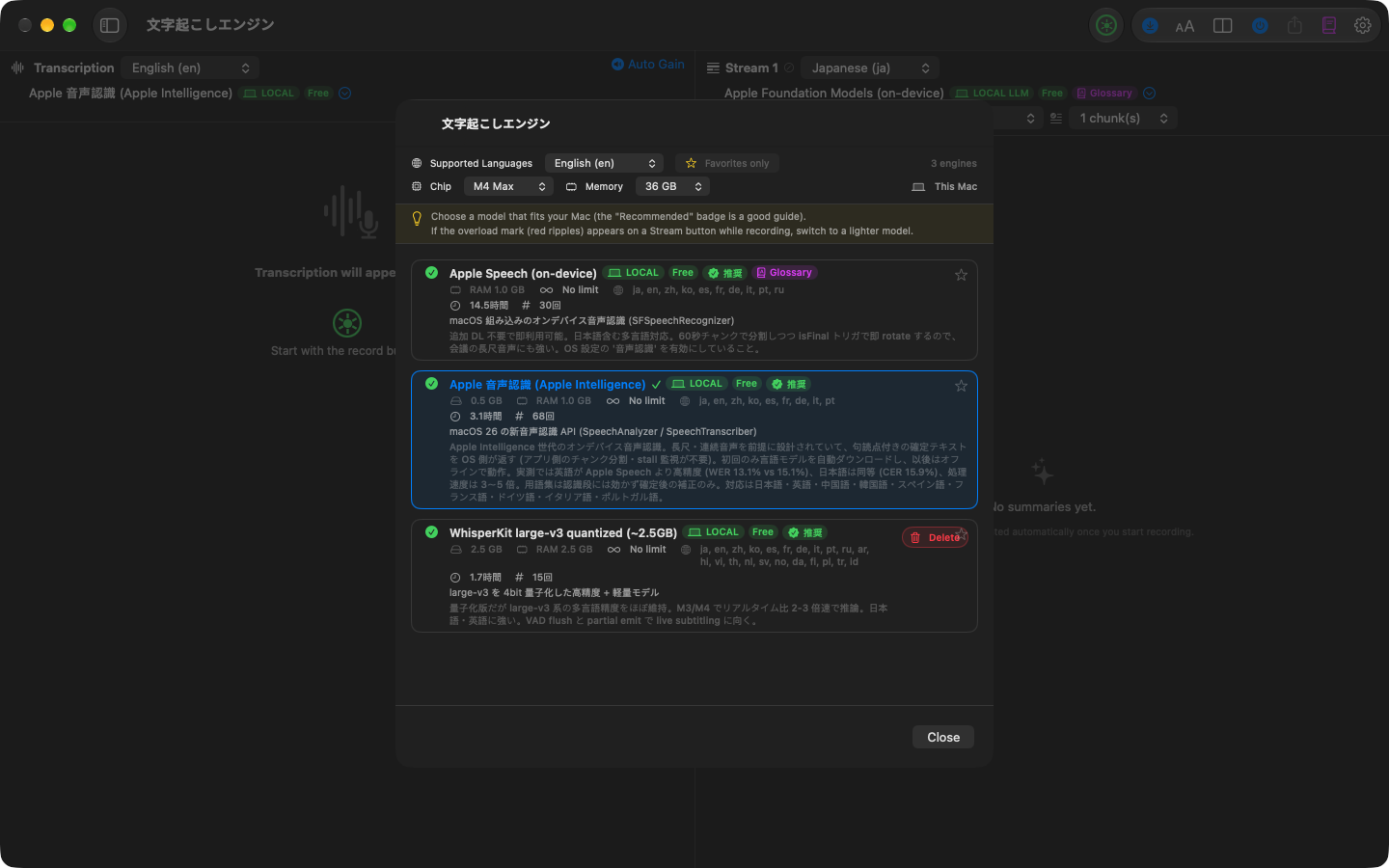
Click the engine name in the header of the transcript or summary pane to open the picker. A new transcription engine takes effect from the next recording; a new summary engine from the next summary.
The transcript language menu lists only the languages the selected engine supports. To transcribe a language the built-in engines don’t cover, switch the engine to WhisperKit first, then choose the language.
Downloading and deleting models
WhisperKit and MLX models download when first selected (the two free models included). Sizes are shown in the picker. Downloaded models can be deleted from each engine’s menu in the picker.
Models live in a cache area inside the app’s container and are managed by the engines. There is nothing to move or edit by hand.