 macOS App
Getting started
From install to your first recording. Microphone and screen-recording permissions, and how the window is laid out.
Requirements
- macOS 26 or later
- An Apple silicon Mac (M1 and up). 8 GB of memory is enough for the Mac’s built-in engines
- No account. No internet connection is needed for ordinary use
What macOS will ask
The first time you record, macOS asks for a few permissions. You can change them later under System Settings > Privacy & Security.
| Permission | When | What it’s for |
|---|---|---|
| Microphone | First recording | Recording your voice |
| Speech Recognition | First recording | The Mac’s built-in transcription. Recognition happens on the Mac as a rule (Apple Speech may use Apple’s servers only when on-device recognition for that language isn’t available) |
| Screen & System Audio Recording | First recording with a “system audio” source | Capturing what the Mac is playing — the other side of a Zoom or Meet call. The screen itself is not recorded |
The window
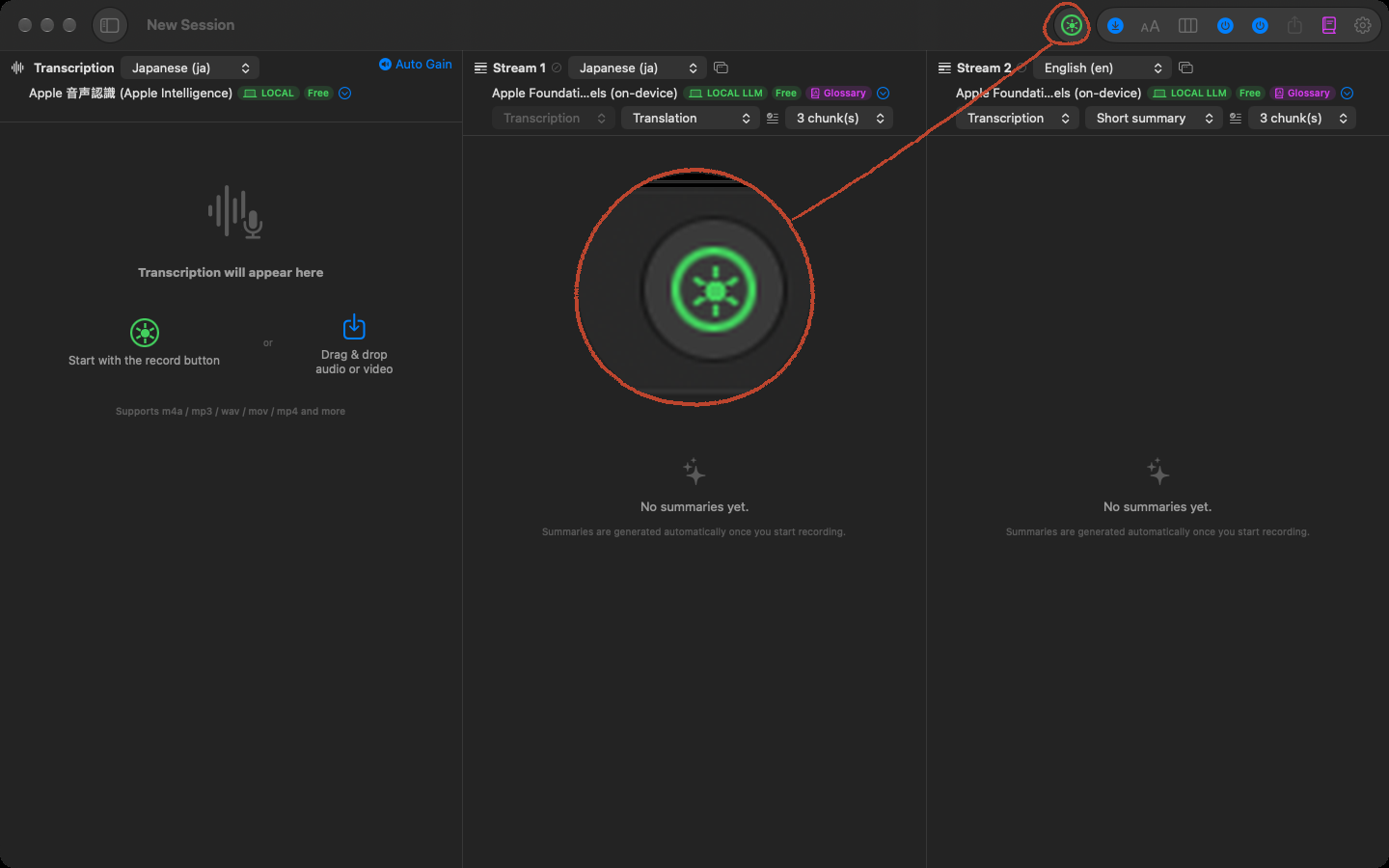
Up to three columns.
- Transcript (left) — what’s said, stacking up with timestamps. A sentence still being recognized sits in a fainter bubble until it settles
- Stream 1 (middle) — a summary column that updates every few lines. Choose its mode (Short summary, Conversational summary, Keywords, Translation) and output language
- Stream 2 (right) Pro — a second summary column with its own mode and language (for example a Japanese summary in the middle and an English translation on the right). Toggle it from the toolbar
The sidebar on the far left lists sessions. One meeting is one session; sessions can be grouped into folders.
Your first recording
- Press the record button (⌘R). The first time, macOS asks for microphone access
- Speak. Text appears in the left column; after a few lines, a summary appears in the middle
- Press the record button again to stop. Recording again in the same session appends to it
Audio is written to disk every few seconds. If the app crashes, what was recorded and transcribed so far survives, and Otonota asks next time whether to resume recording in the same session.
When other people can hear the meeting
Get consent before recording. Transcripts and summaries are machine-generated and may contain errors or inappropriate wording. Under Settings > General > Display you can choose how often a notice to that effect is shown on screen.