Pro (iPhone and iPad)
What's free and what's Pro, the meeting wrap-up, importing audio and video files and transcribing again (with speaker separation), external models (WhisperKit / MLX), and buying or restoring Pro.
Free and Pro
Recording, live transcription, automatic summaries, “Summarize the Rest”, the glossary, saved sessions, and Markdown sharing and export are free, with no time or usage limits.
Pro adds:
- A wrap-up of a finished meeting
- Importing audio and video files, and transcribing a recorded session again (both with speaker separation)
- Running external models on the device (WhisperKit for transcription, MLX for summaries)
Without Pro, these buttons don’t appear at all. The only place Pro is mentioned is the Pro section in Settings.
Meeting wrap-up Pro
Sums up a whole finished meeting on one page.
- Open a session that has finished recording
- Tap “Meeting wrap-up” at the end of the summary column (or “Meeting wrap-up” in the session’s … menu)
- When it’s ready, the wrap-up appears after the summaries and the column scrolls to it
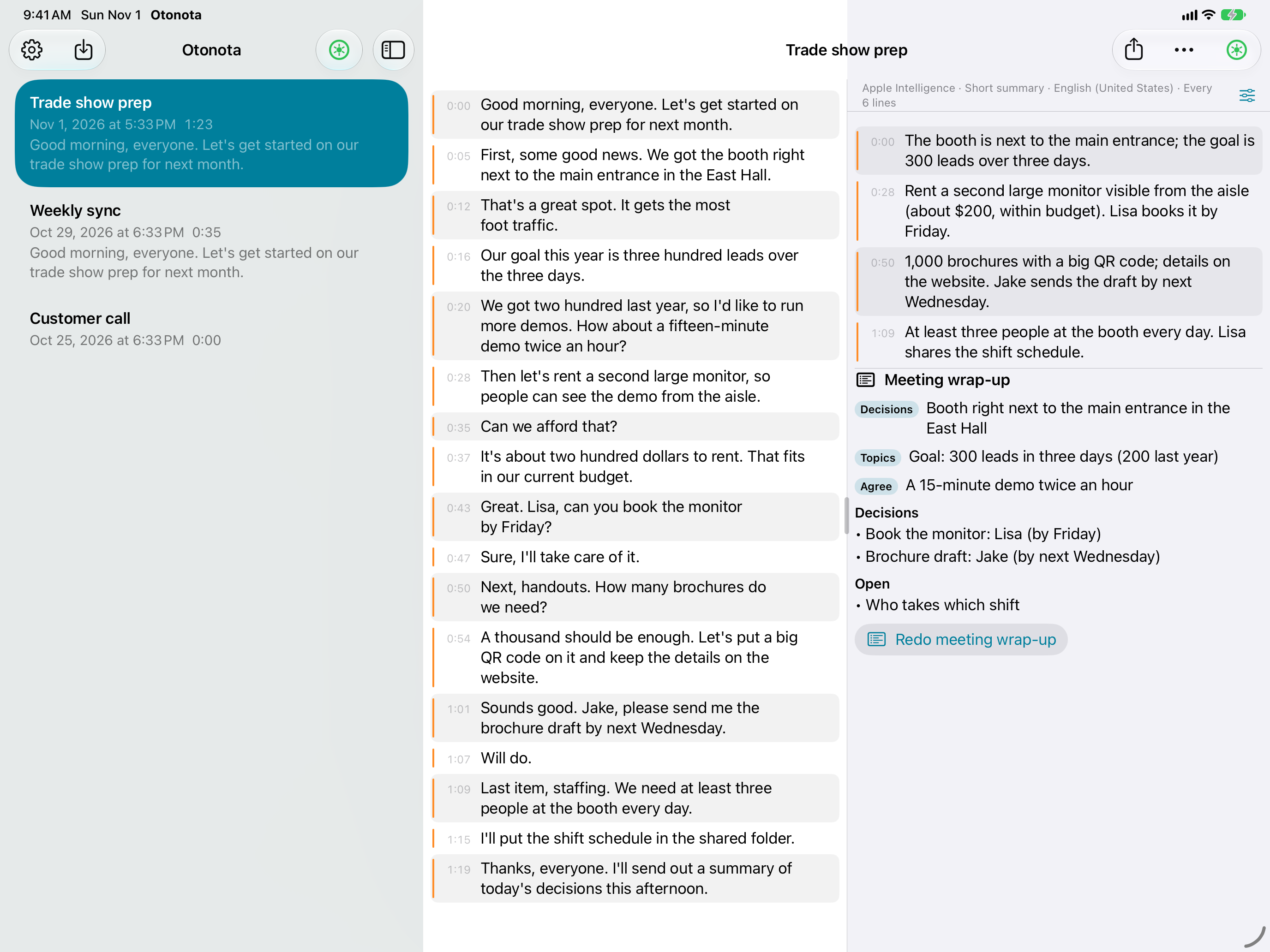
The wrap-up has three parts.
| Part | Contents |
|---|---|
| Topics | Each thing that came up, tagged Decisions, Topics, Agree, Disagree, Question, and so on |
| Decisions | What was decided |
| Open | What was left undecided |
- The wrap-up is always written by Apple Intelligence, whatever the summary engine, in the Summary Language
- Long meetings are wrapped up in sections first, then combined
- Sections the guardrails refuse are skipped, and Otonota tells you how many
- To make a new one, tap “Redo meeting wrap-up”
- The wrap-up is included in Share and in the Markdown from Export to File. If Pro lapses, wrap-ups you already made stay visible
- It can’t be made during a recording. Stop first
Importing audio and video Pro
Runs voice memos, videos and other files through the same transcription and summaries as a live recording.
- Tap Import (the tray with a down arrow) above the session list and choose files. Several files are joined into one session. For video, only the audio is used
- On the “Import Audio and Transcribe” screen, choose:
- Transcription — Recognition Engine and Language
- Speakers — Separate speakers and Number of speakers (see “Speaker separation” below)
- Summary — Summarize Automatically, Summary Style, Summary Language and Summary Interval (the same values as in Settings)
- Tap Start
The transcript column shows progress (“Transcribing elapsed / total”). Summaries build up during transcription, just as they do while recording. To stop partway, tap the record button.
Even if your recognition engine is set to “Standard”, the import screen opens with “AI (Apple Intelligence)” when it supports the language. “Standard” can drop lines when two people trade short turns.
Transcribe Again Pro
Transcribes a recorded session again — with a different engine or language, or with speaker separation.
Choose “Transcribe Again” in the session’s … menu to open the same screen as Import. The original session stays; the result is a new session called “… (re-transcribed)”.
It needs the recorded audio. For sessions recorded with Keep Audio turned off, the menu item doesn’t appear.
Speaker separation Pro
Turn on “Separate speakers” when importing or transcribing again, and once the transcript is done Otonota listens to the whole recording and labels each line “Speaker 1”, “Speaker 2”, and so on. It runs on the device.
- The first time, it downloads the speaker separation model (a few tens of MB)
- If you know how many people were talking, set Number of speakers (2–8). It’s more accurate than Automatic
- Lines are split where the speaker changes
- Up to two hours of audio at a time
- While speakers are being separated, the record button becomes “Stop Speaker Separation”. Tapping it stops only the separation; the transcript stays
- There is no live speaker separation while recording
External models Pro
Under External Models in Settings, you can download models that run on the device.
| Model | Role | Notes |
|---|---|---|
| WhisperKit large-v3 (quantized) | Transcription | High accuracy. Multilingual. About 0.6 GB |
| WhisperKit small | Transcription | Light and fast. Multilingual. About 0.5 GB |
| MLX Qwen3.5 2B | Summaries | Lightweight summary model. About 1.6 GB |
| MLX Qwen3.5 4B | Summaries | More thorough summaries. About 3 GB. For devices with 8 GB of memory or more |
Downloaded models appear under Recognition Engine and Summary Engine in Settings. Which to pick, how to download and delete them, and how much memory each needs are covered in Choosing engines and models.
Buying and restoring Pro
Buy Pro from the Pro section in Settings. Both options are one-time purchases, not subscriptions.
| Button | Price (US) | Works on |
|---|---|---|
| For iPhone / iPad | US$14.99 | iPhone and iPad |
| Also on Mac | US$49.99 | iPhone, iPad and Mac |
Prices here are for reference. App Store prices can change before this page is updated; the price shown in the app and on the App Store when you buy is the one that applies.
- If you bought Pro in the Mac app with the same Apple Account, you already have Pro on iPhone and iPad. On a new device, tap Restore Purchases
- If you bought “For iPhone / iPad” and later want Pro on the Mac too, upgrade for the difference (US$34.99) from the Pro section of the Mac app’s settings
- Pro can’t be bought on devices that don’t support Apple Intelligence
- If buying or restoring doesn’t work, see Troubleshooting
Prices vary by country and region; the App Store shows yours. For what’s free and what’s Pro, see Pricing.