Recording and the screen
Recording, stopping and continuing; the layout on iPhone, iPad and iPhone Duo in each orientation and posture; resizing the columns; locking the screen and phone-call interruptions; the session list; sharing and Markdown export.
Recording
Tap New Recording (the cassette reel) above the session list. A sheet lets you check the transcription engine and language, the glossary (including loading a saved one), About this conversation, and the summary settings; tap Start to create a new session and begin recording. In a session that has nothing recorded yet, you can also tap “Start with the record button” in the transcript column.
On iPad and iPhone Duo, the “+” button at the top of the sidebar creates a new session without recording. When you start the first recording, its title and time are reset to that moment. If you move to another session without recording, the empty session is not kept.
Use About this conversation to note, in one to three lines, what the conversation is about and who is in it. It is used as context for summaries and the meeting wrap-up. You can also edit it later from “About this conversation (optional)” in the session’s “…” menu.
While recording, the elapsed time shows at the top of the transcript column, with a small pulsing icon to its right whenever a summary is being written. The red line at the bottom of the column shows how loud the microphone input is.
While recording, a small “Generated automatically; may contain errors or inappropriate wording” note appears at the bottom of both columns: for the first three minutes, then for 20 seconds every five minutes.
Stopping and continuing
- To stop, tap the record button in the session (red and spinning while recording). It stops right away, keeping everything up to the sentence in progress as final
- Lines that hadn’t been summarized when you stopped stay as they are. Summarize them later with “Summarize the Rest” in the summary column (see Summaries and the glossary)
- In a finished session, the record button becomes Continue Recording. Tap it to check the settings, then Start to add to the same session; timestamps carry on from the previous recording
- For a different meeting, start a new session with New Recording
If you tap the record button while “Preparing” is showing (the speech model is downloading for a new language), the preparation is cancelled too.
You can go back to the list and open other sessions while recording. A “Recording” bar then appears at the bottom of the list; tap it to return. During a recording, the record button above the list becomes Stop, the same as the record button in the session (one recording at a time).
Layout
The app opens on the session list. Open a session and the transcript and summary appear together: transcript on top and summary below when the screen is taller than it is wide, transcript on the left and summary on the right when it’s wider.
iPhone
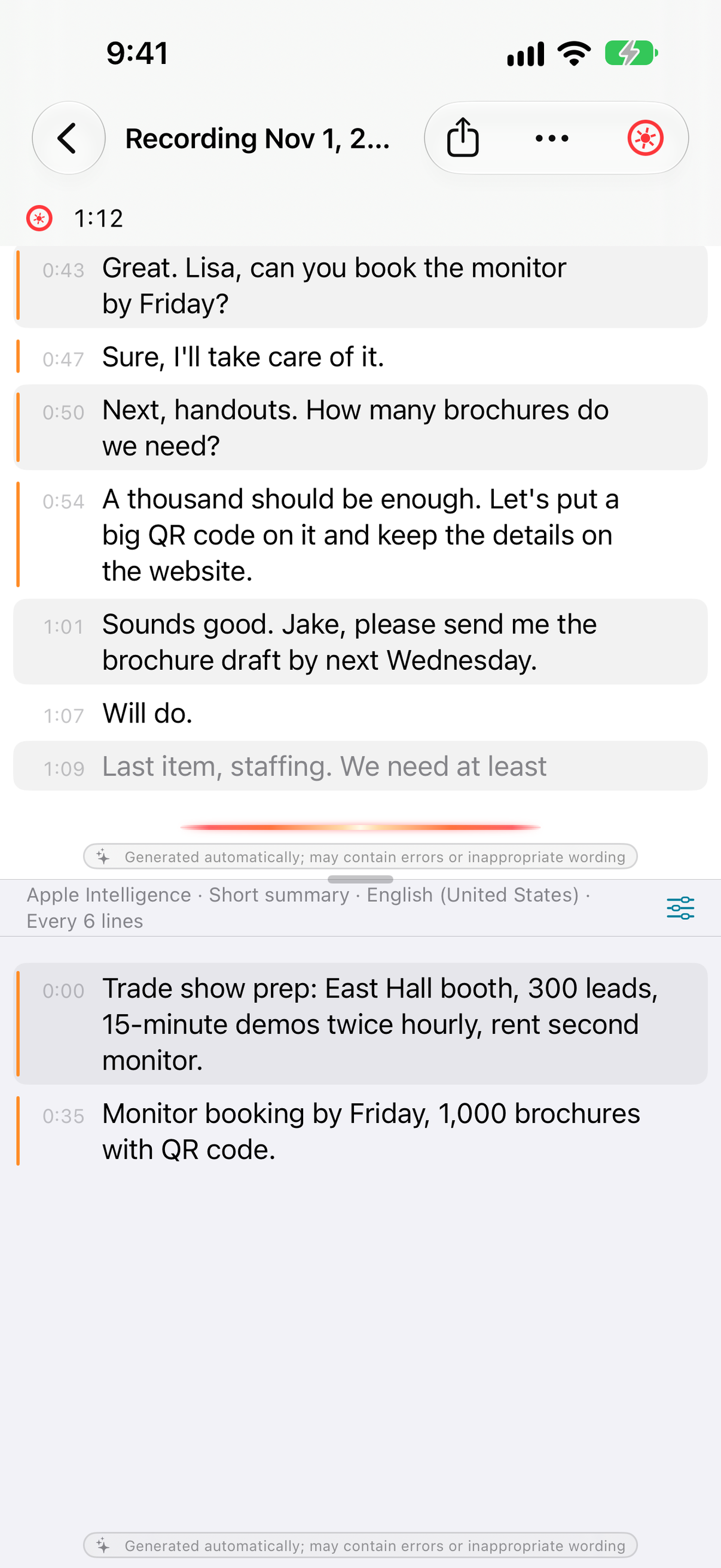
| Orientation | Layout |
|---|---|
| Portrait | Transcript on top, summary below. You switch between the list and a session (the “<” at the top left goes back to the list) |
| Landscape | Transcript on the left, summary on the right. To give the text more room, the status bar is hidden and the toolbar runs along the top |
iPad
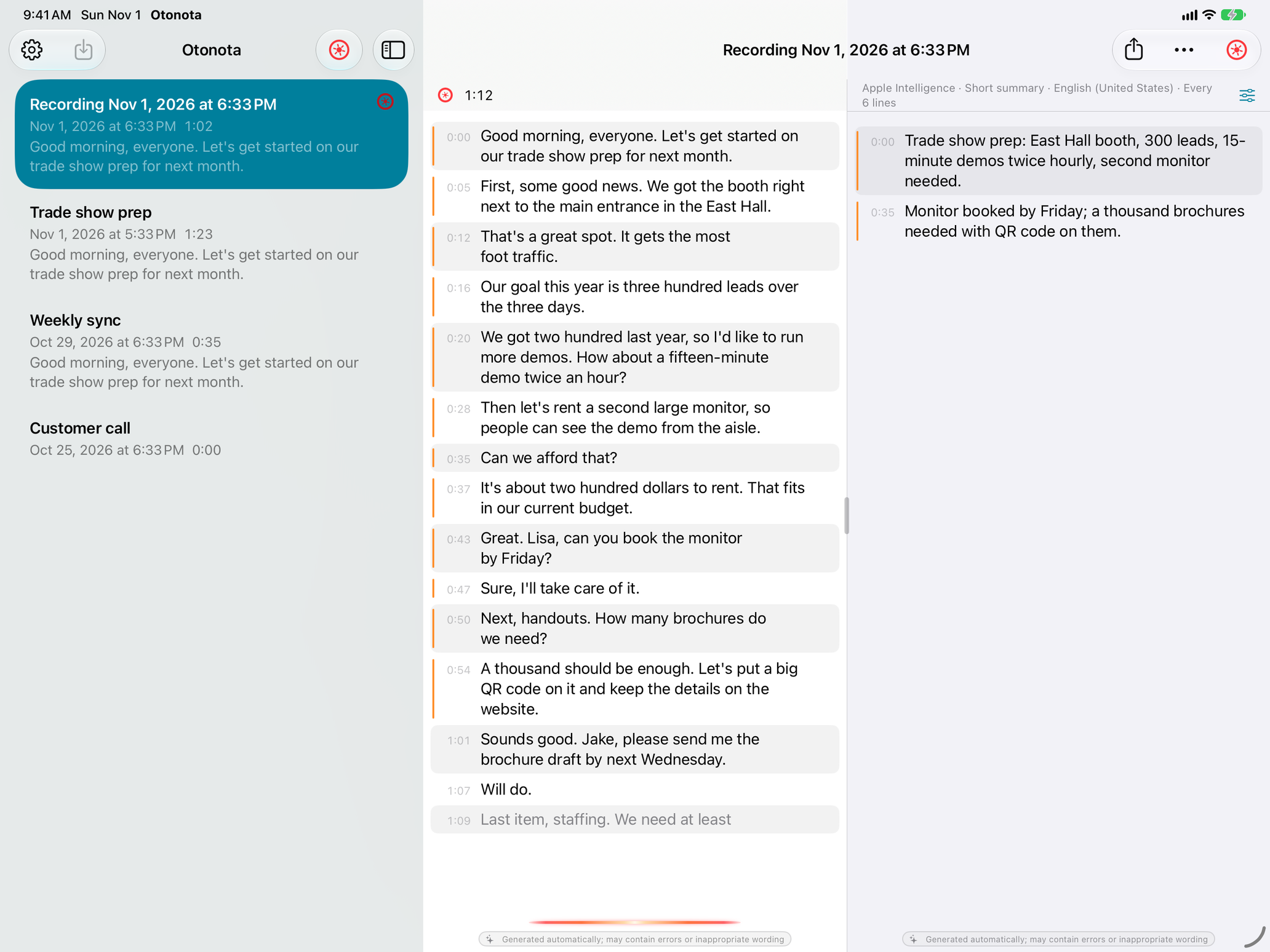
| Orientation | Layout |
|---|---|
| Landscape | Session list on the left, transcript in the middle, summary on the right |
| Portrait | Transcript on top, summary below. The list is hidden; the sidebar button at the top left brings it back |
iPhone Duo
Use it closed, open, or half open. Change the posture or orientation and the screen rearranges itself; recording keeps going.
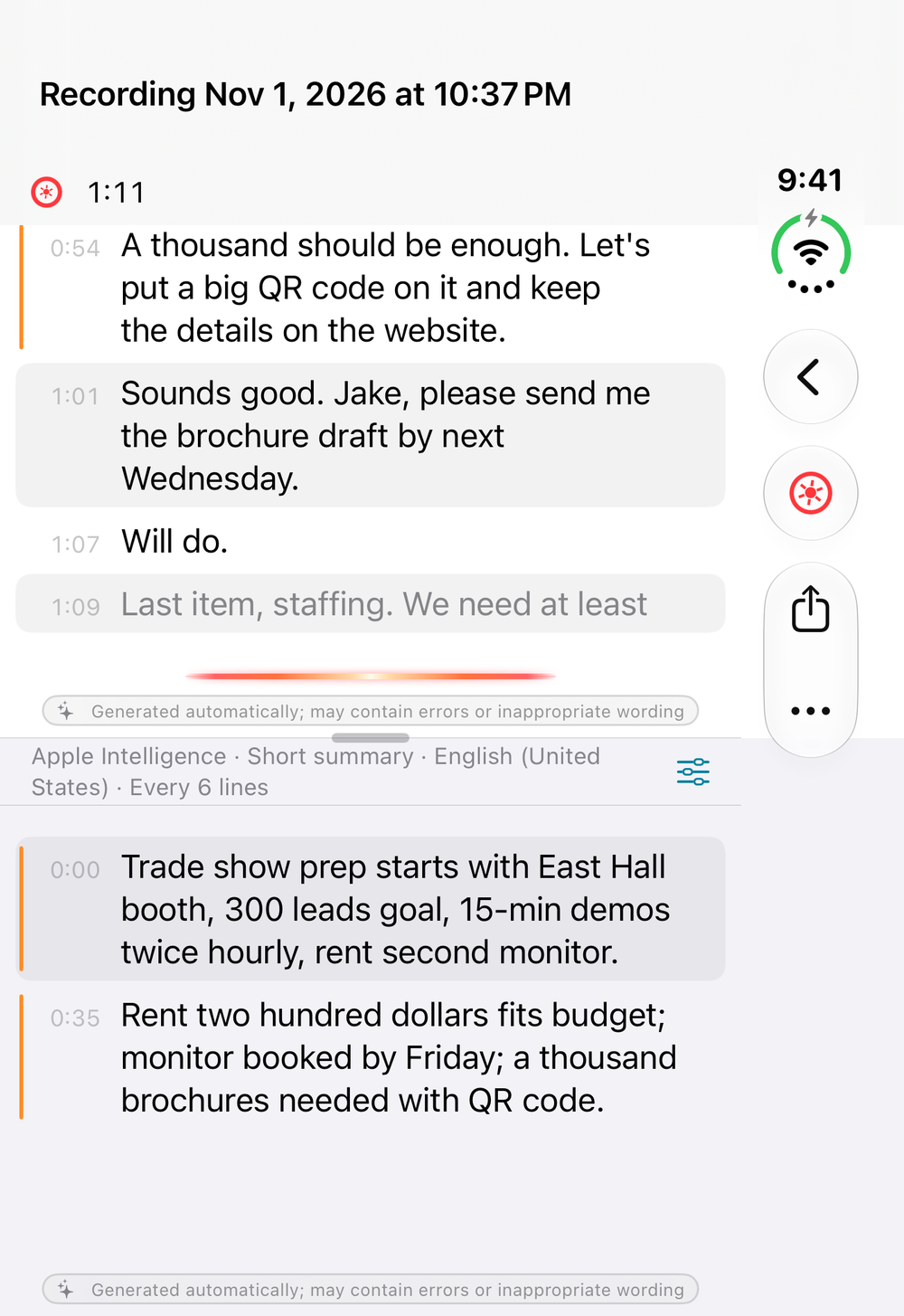
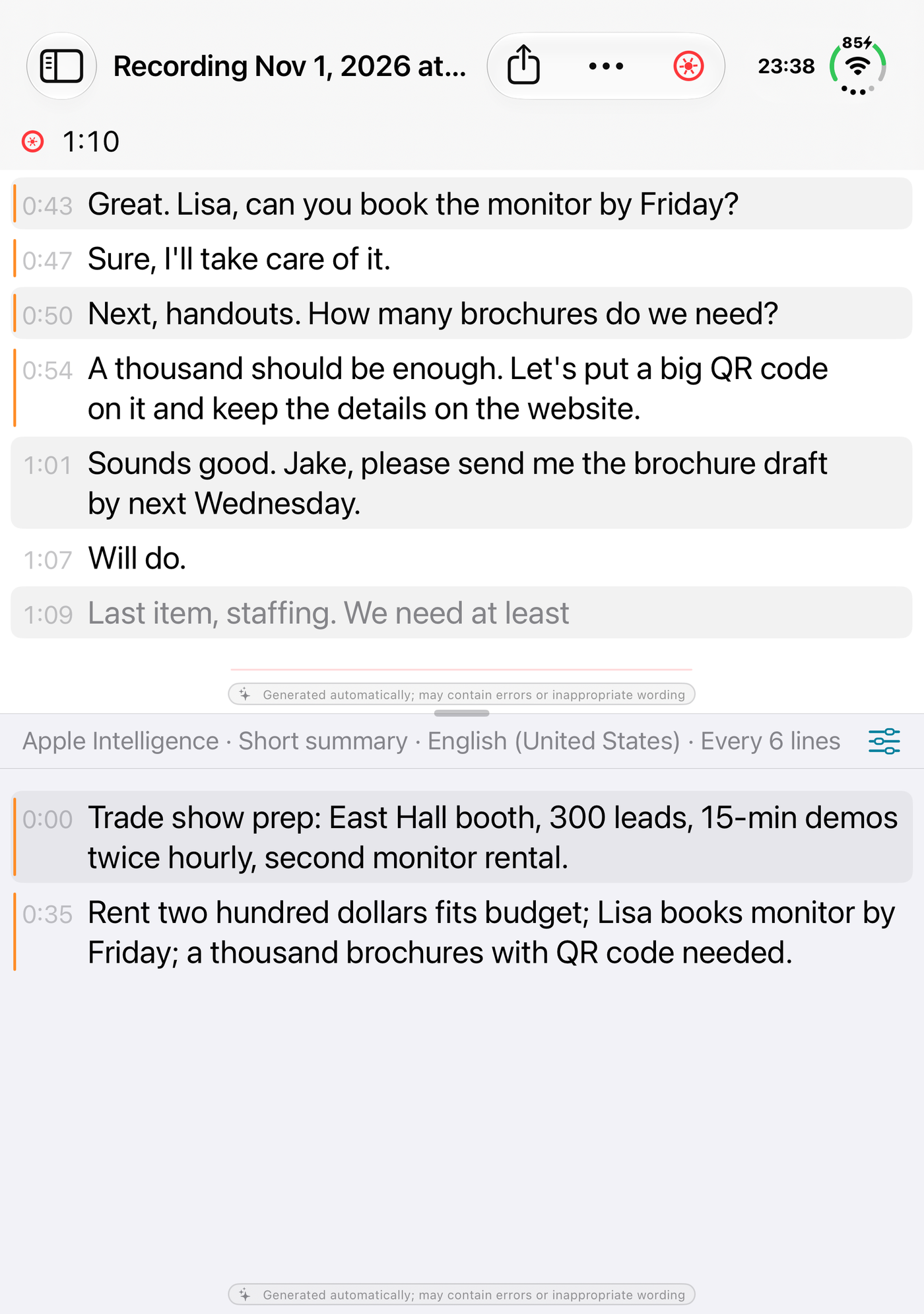
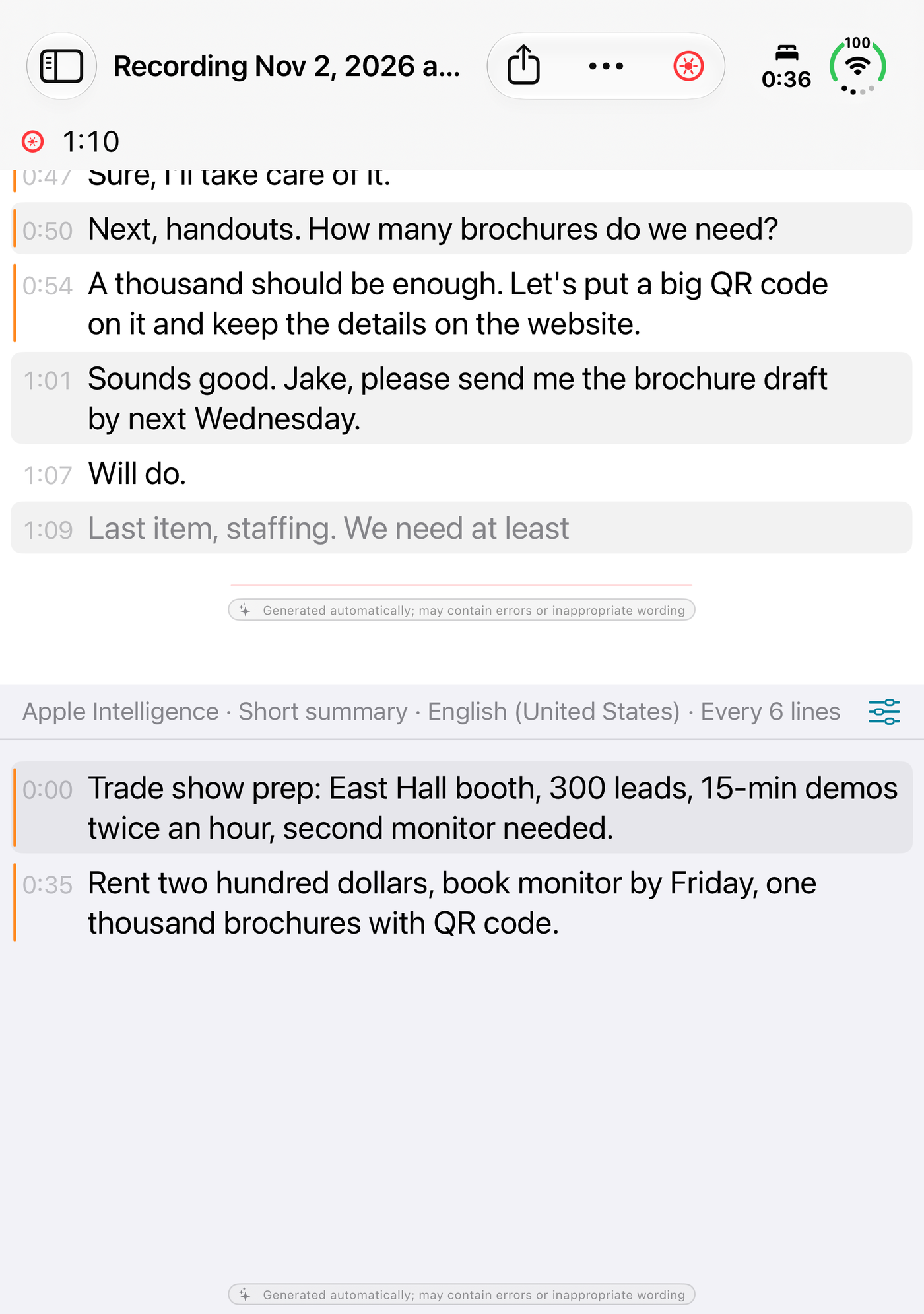
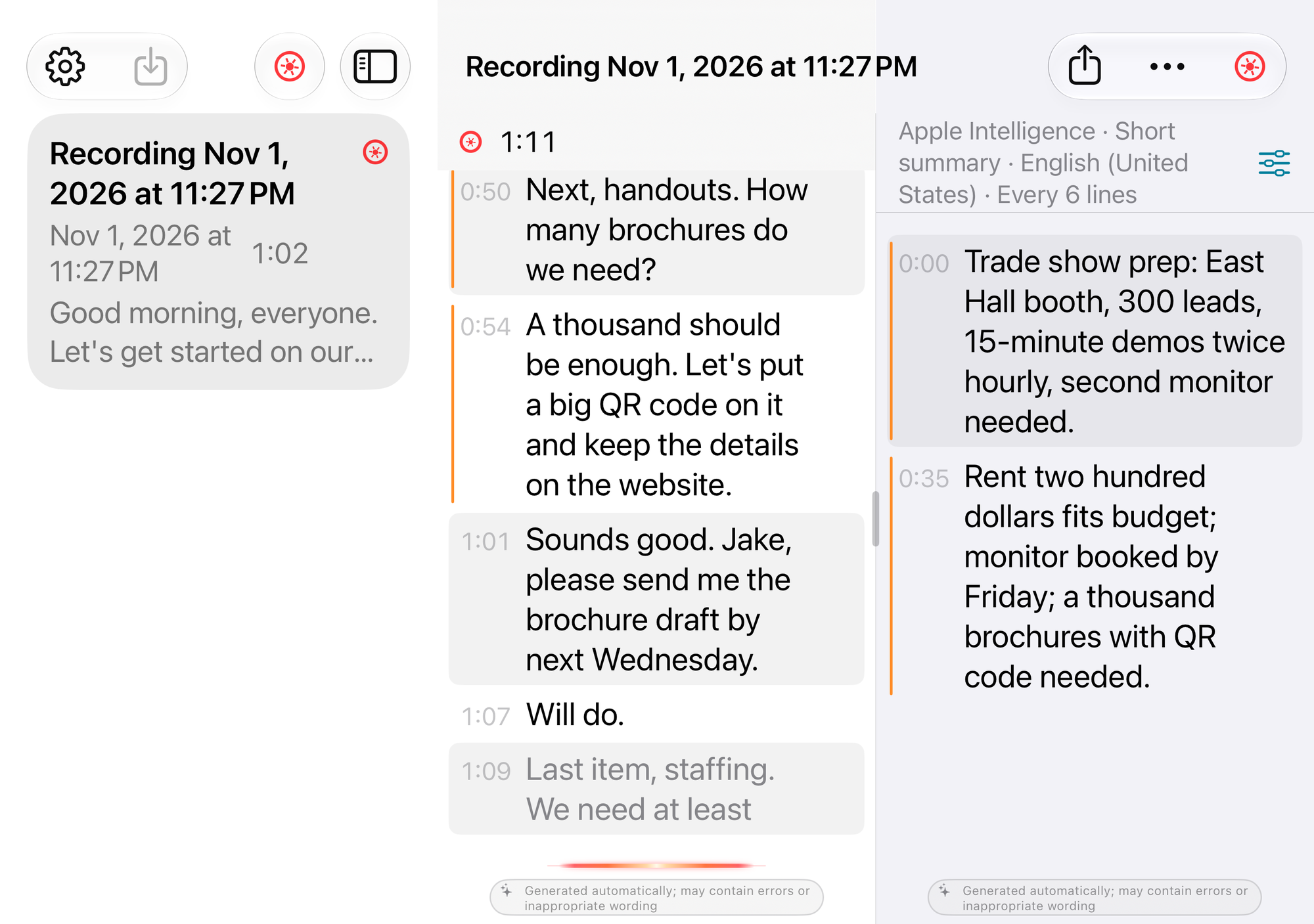
| Posture and orientation | Layout |
|---|---|
| Closed (outer display) | Transcript on top, summary below. The toolbar runs down the side of the screen |
| Open, upright | Transcript on top, summary below. The sidebar button at the top left brings up the list |
| Open, sideways | Session list on the left, transcript in the middle, summary on the right (transcript and summary are the same width). In a session with automatic summaries off and no summaries yet, the list takes the left half and the transcript the right half, with the border on the fold |
| Half open, like a book | The list hides itself; the transcript takes the left half and the summary the right half, with the border on the fold. Open it flat and the list comes back |
| Half open, like a laptop | Transcript on top, summary below, with the border on the fold |
Resizing the columns
- Drag the small handle on the border between the transcript and the summary to resize them
- Double-tap the handle to center it again
- Portrait and landscape each remember their own position
- On a half-open iPhone Duo the border is fixed to the fold; there is no handle and it can’t be moved
- With VoiceOver, select the border and swipe up or down to move it a step at a time
Reading back
Both columns follow new lines to the bottom. Scroll up to read back and following stops, with a ↓ button at the bottom right; tap it, or scroll back to the bottom, to resume.
Touch and hold a line in the transcript or summary to copy its text.
Locking the screen or switching apps
- The screen stays awake while you record (Keep Screen On While Recording in Settings, on by default)
- Lock the screen or switch to another app, and recording and transcription carry on
- Summaries pause while Otonota is in the background and catch up when you come back. iOS doesn’t let background apps run that kind of work
- For a meeting, keeping Otonota in front is the surest way
Phone calls and other interruptions
- If a phone call or similar interrupts the recording, “Interrupted” appears next to the elapsed time
- When the interruption ends, recording resumes on its own. Audio during the interruption isn’t recorded, and the transcript’s timestamps close up over the gap
- If no resume signal arrives, Otonota tries to resume on its own after 3, 6 and 12 seconds
- If recording can’t resume, it stops and the reason is shown. Tap the record button to continue in the same session
The session list
- Each session shows its title, date, length, and the first thing said. The session being recorded has a red cassette-reel mark
- To rename one, touch and hold it in the list and choose Rename, or use the … menu in the session
- To delete one, swipe left on it and tap Delete (or use the touch-and-hold menu, or the … menu in the session). Confirm with Delete under “Delete this session?” and the transcript, summaries and recorded audio are deleted. There is no trash, so this can’t be undone
- The session being recorded can’t be deleted. Stop first
Sessions and recordings are stored on the device. They don’t sync with your Mac or other iPhones and iPads.
Sharing and export
- Share in a session (the box with an arrow) is a menu. “Transcript and Summary” sends Markdown text, and “Recorded Audio” sends the recorded audio file (m4a; several files if you continued the recording) to another app, such as Mail, Notes or AirDrop
- Export to File in the … menu saves a Markdown file (.md) to the Files app or elsewhere, named after the session
The text holds, in order, the title, date and length, the meeting wrap-up if there is one, the summaries with timestamps, and the transcript with timestamps (and speakers, if you separated them). Sharing and export are free. The text is unavailable until the session has at least one line of transcript; the audio is unavailable while recording or importing.
Exporting data with elapsed times (SRT / JSON / CSV) isn’t available on iPhone and iPad yet.